


This is part 4 of a 7 part post on managing vSphere 5 Certificates:
- Installing a Root Certificate Authority
- Distributing the root CA certificate to clients
- Creating the default vCenter 5 Server Certificate and including a DNS alias
- Replacing the default vCenter 5 Server Certificate
- Replacing the default vCenter 5 Web Client Server Certificate
- Replacing the default vCenter 5 Inventory Service Certificate
- Replacing the default vSphere Update Manager 5 Server Certificate
vCenter Server actually has three different components which need their certificates updated, vCenter Server, vCenter Web Client Server and vCenter 5 Inventory Service. Initially I had only written the vCenter Server certificate steps but luckily Michael Webster (VCDX #66) keeps me on my toes and I’ve now added parts for the other two components.
You should have now created the default vCenter 5 server certificate files and can now go ahead and replace the existing certificate for vCenter 5 Server with the new certificate files you have created.
On the vCenter Server navigate to C:\ProgramData\VMware\VMware VirtualCenter.
Make a backup copy of the SSL folder.

Copy the rui.crt, rui.key and rui.pfx files from C:\OpenSSL-Win64\bin into the into the vCenter SSL folder

In vSphere 5 there is a new way to get vCenter to use the new certificate. In vSphere 4 you needed to stop and start the vCenter Service and then re-encrypt the database connection. This has now been exposed through the vCenter API so it makes it a little easier.
Use a browser and on the vCenter Server navigate to the Managed Object Browser at the following address:
http://localhost/mob/?moid=vpxd-securitymanager&vmodl=1
Logon as an administrator of vCenter, as I use a service account I have logged on with this account.
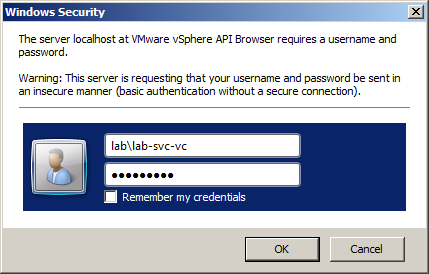
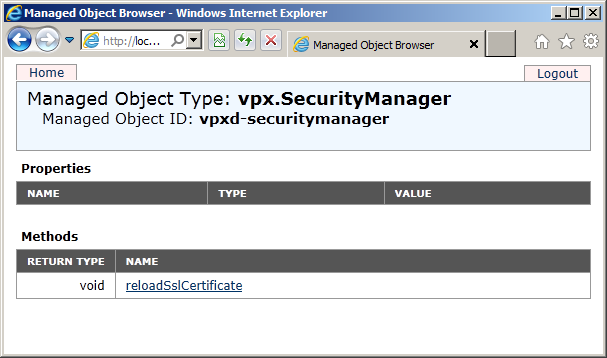
The Managed Object Type for the vpx.SecurityManager will load, Click on reloadSslCertificate
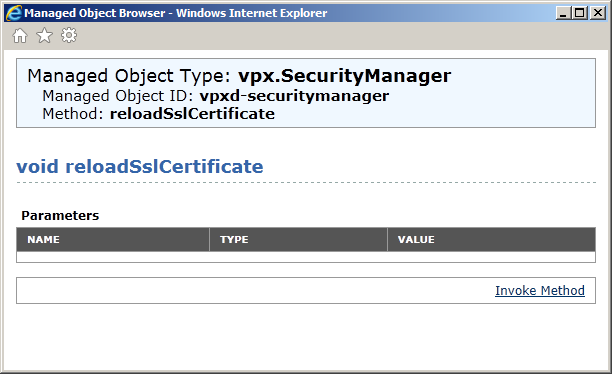
Click on Invoke Method
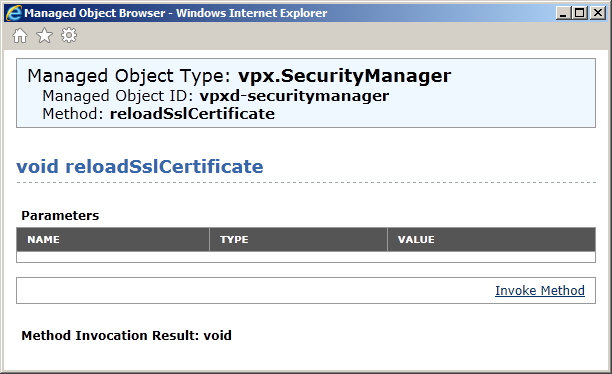
The new SSL certificates will be loaded and you should see Method Invocation Result: void if it is successful.
On the vCenter Server, restart the VMware vCenter Management Webservices.
You can check the trusted certificate has been successfully replaced by pointing your browser to the https:// web server address of your vCenter server (in my example https://lonvc01.lab.int/), you should no longer see the security certificate warning message.
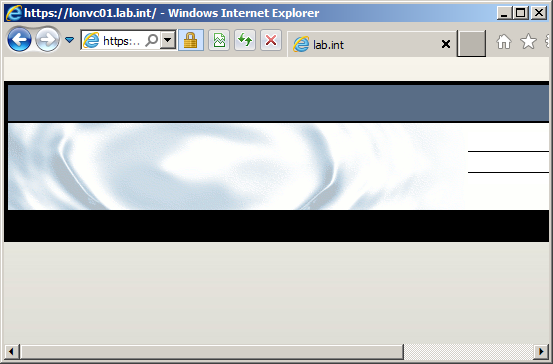
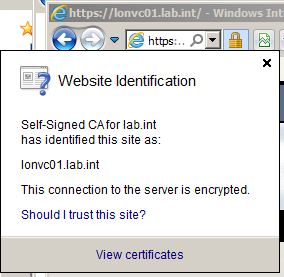
If you click on the padlock symbol you should be able to see the new certificate by clicking on View certificates.
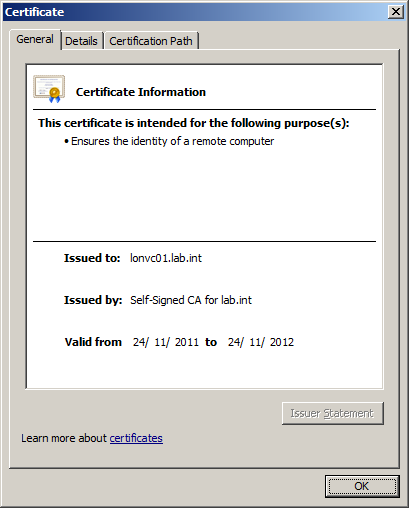
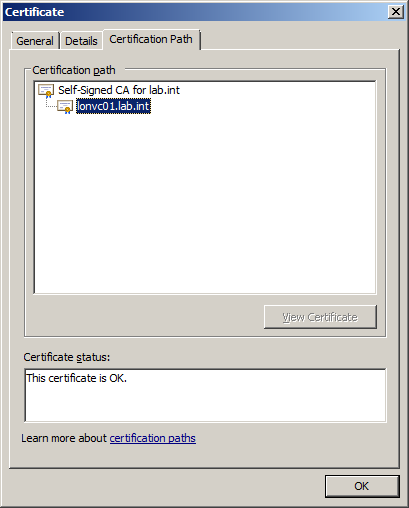
On the General tab you can see the certificate has been issued by Self-Signed CA for lab.int rather than the server itself and on the Certification Path tab you can see the certificate key chain.
As you have created a certificate containing both the FQDN lonvc01.lab.int and the short name lonvc01 you should be able to launch the vSphere client with either name and no longer get any certificate warnings for the vCenter Server (you may still get warnings for other vCenter components and plug-ins which use different certificates).


Part 5 will show you how to replace the default vCenter 5 Web Client Server Certificate.