vSphere 5 Certificates: 3 – Creating the default vCenter 5 Server Certificate and including a DNS alias
This is part 3 of a 7 part post on managing vSphere 5 Certificates:
- Installing a Root Certificate Authority
- Distributing the root CA certificate to clients
- Creating the default vCenter 5 Server Certificate and including a DNS alias
- Replacing the default vCenter 5 Server Certificate
- Replacing the default vCenter 5 Web Client Server Certificate
- Replacing the default vCenter 5 Inventory Service Certificate
- Replacing the default vSphere Update Manager 5 Server Certificate
You should now have a root CA certificate distributed to all clients so you can proceed with creating certificates for vCenter 5 which will be trusted by this root CA certificate. These steps will also allow you to create DNS aliases for your certificate if you need them so you can connect to your vCenter server using any of the aliases and still have a valid certificate.
In order to create certificates you will need an application to generate them, one of the easiest is OpenSSL.
Installing OpenSSL
If you install OpenSSL on a vCenter Server, as vCenter 5 only installs on 64-bit you should download the 64-bit version of Win64OpenSSL_Light-1_0_1b and its pre-requisite Visual C++ 2008 Redistributables (x64)
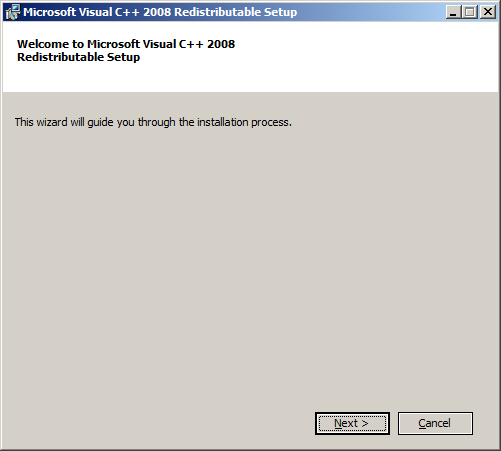
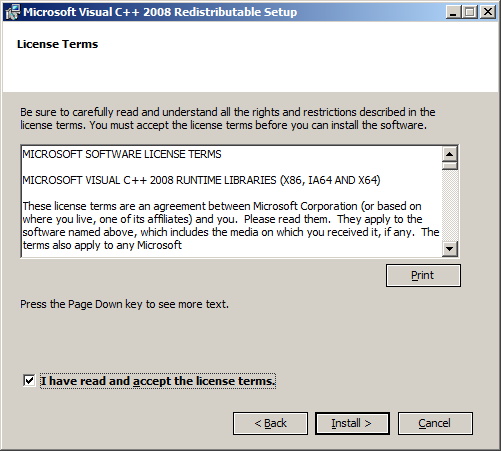
Install Visual C++ 2008 using all default settings.
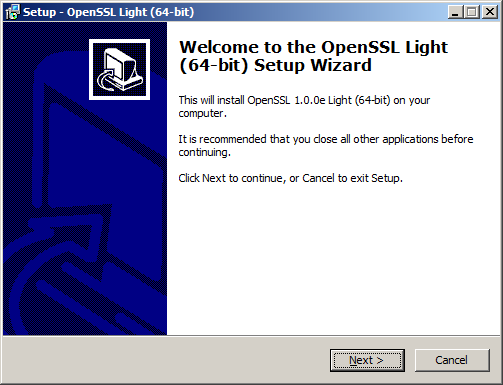
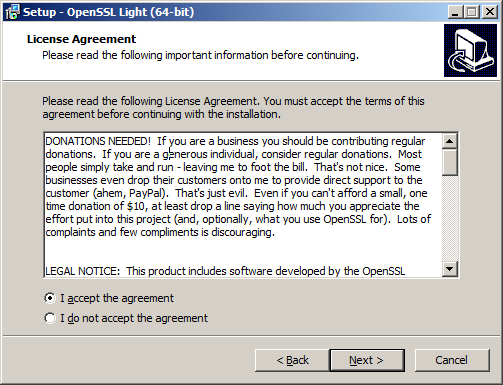
Install Win64 OpenSSL v1.0.0e Light
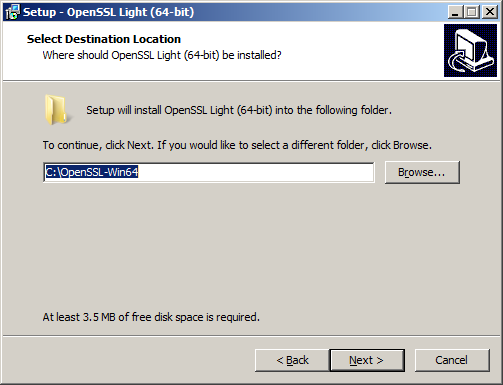
I installed to the default directory C:\OpenSSL-Win64\

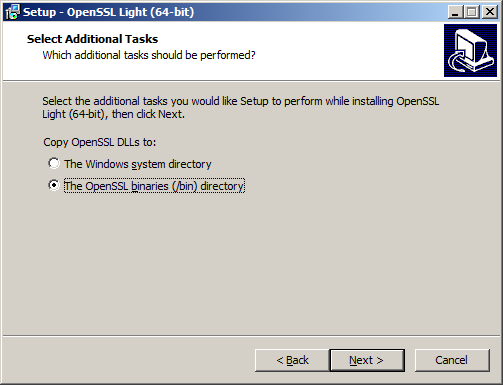
Select to Copy OpenSSL DLLs to The OpenSSL binaries (/bin) directory
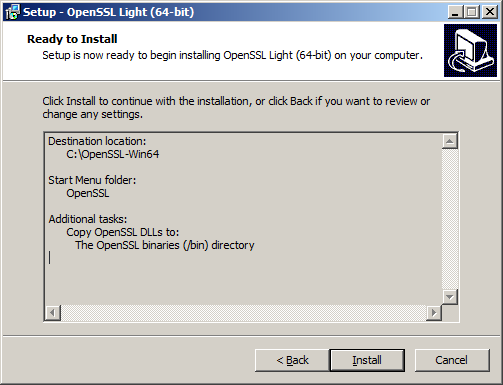
If you are of generous disposition you can always make a donation.
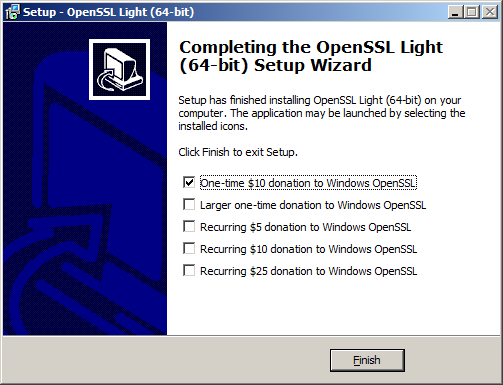
You are now ready to create the vCenter certificates.
The certificate creation process will ultimately create 3 files:
- X.509 certificate file with RSA public key in PEM format, named rui.crt
- RSA private key in PEM format, named rui.key
- PKCS12 bundle of the same certificate and key, named rui.pfx
Certificate DNS Aliases
One thing to bear in mind is that by default certificates are tied to the exact server name they are created for which is normally the FQDN of the server. If you create a certificate for the server lonvc01.lab.int and then connect by the short name lonvc01 or by any other DNS alias such as myvc for example the certificate will not be seen as a trusted certificate even though a connection to vCenter will be possible.
You can actually amend the default certificate creation process to specify particular aliases within the certificate so you can connect with both lonvc01.lab.int and also lonvc01.
Navigate to the folder where you installed OpenSSL, for example, C:\OpenSSL-Win64\
Make a backup copy of the default OpenSSL configuration file, openssl.cfg and then open it in a text editor.
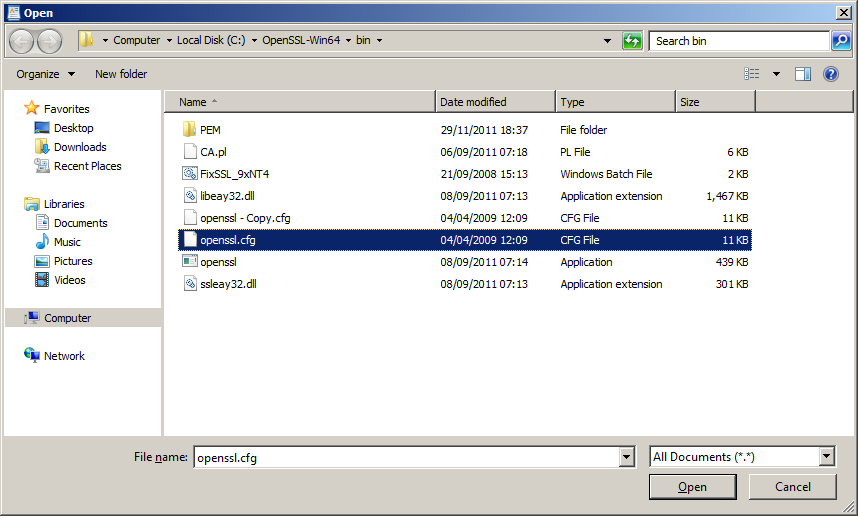
Find the [ req ] section and add the following line:
req_extensions = v3_req
Find the [ v3_req ] section and add a new subjectAltName line listing the required DNS names including the full FQDN for example:
subjectAltName = "DNS:lonvc01.lab.int, DNS:lonvc01"
Save the openssl.cfg file.
You should remember to replace the openssl.cfg file with the original when you are finished creating the certificates as the same DNS alias will be applied to future certificates generated.
Creating the Certificate Files
You can now use OpenSSL to create a certificate using this modified configuration file.
Launch a command prompt and change directory to the OpenSSL /bin directory.
cd C:\OpenSSL-Win64\bin
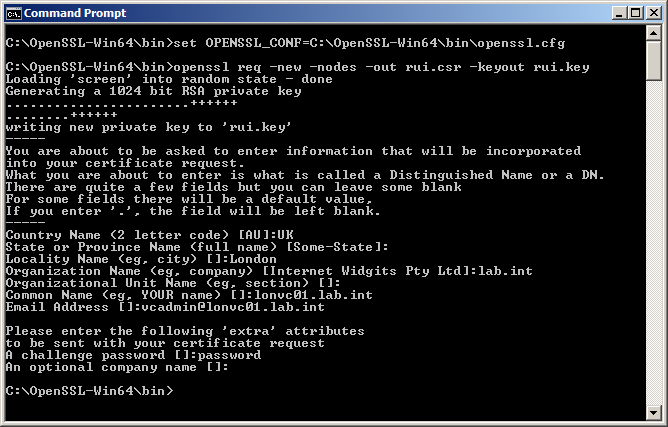
You need to set an environment variable pointing to the OpenSSL configuration file otherwise it can’t find it so in this example type:
C:\OpenSSL-Win64\bin\openssl.cfg
Create a new key for the vCenter Server with the following command:
openssl req -new -nodes -out rui.csr -keyout rui.key
You will then need to add the certificate information into the certificate request. What you enter may depend on the standards you have in your company and some fields are optional.
Common Name is the most important field as you need to enter the FQDN server name of your vCenter Server to generate a certificate based on that name.
My certificate is generated with the following information:
Country Name (2 letter code) [AU]:UK
State or Province Name (full name) [Some-State]: <Blank>
Locality Name (eg, city) []:London
Organization Name (eg, company) [Internet Widgits Pty Ltd]:lab.int
Organizational Unit Name (eg, section) []: <Blank>
Common Name (eg, YOUR name) []:lonvc01.lab.int
Email Address []:vcadmin@lonvc01.lab.int
A challenge password []:password
An optional company name []:<Blank>
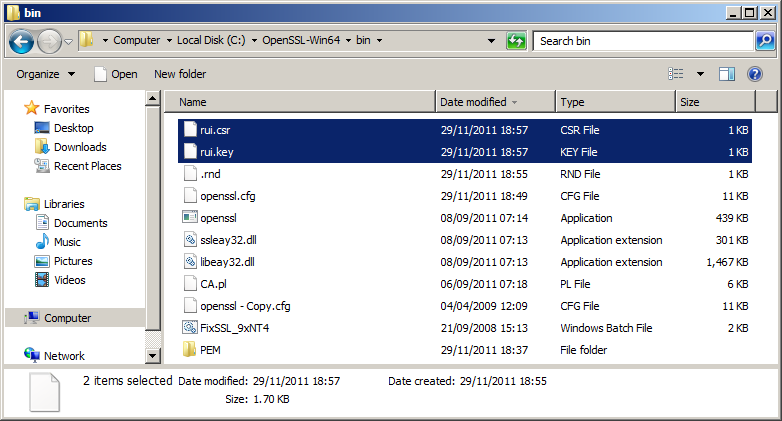
You will see two new files have been created rui.csr and rui.key which represent the certificate created.
Certifying the certificate with the Root CA
The file holding the key rui.csr needs to be uploaded to the Root CA Certificate Authority and needs to be then trusted.
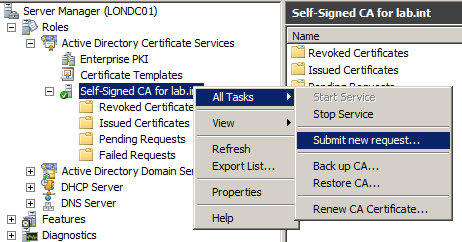
Launch Server Manager and navigate to Roles | Active Directory Certificate Services and then your root CA authority name, in my example, Self-Signed CA for lab.int.
Right click and select All Tasks | Submit New Request
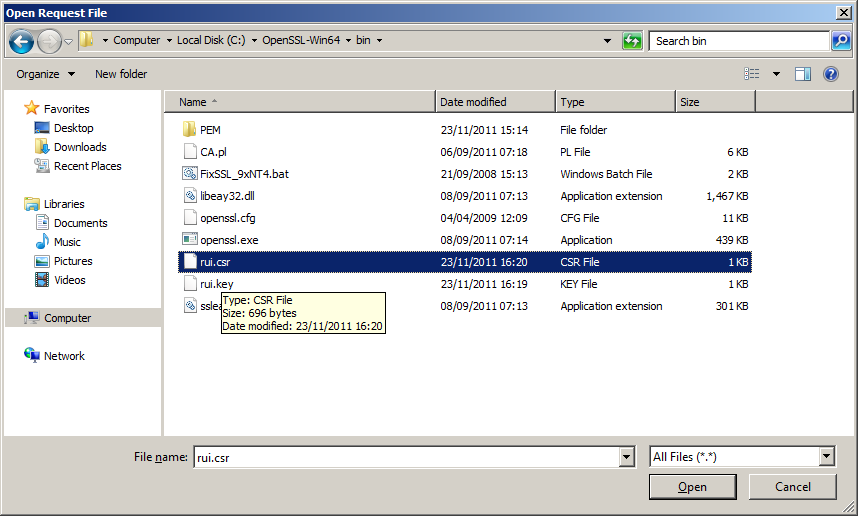
Browse to the rui.csr file you previously created and click Open
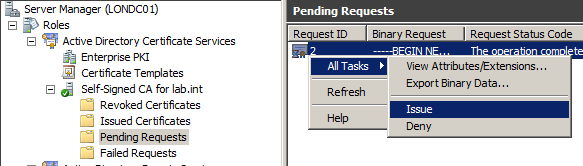
Navigate to the Pending Requests folder and you will see the certificate has been imported, you can check you have the right certificate by right-clicking and selecting View Attributes/Extensions and checking the certificate name. When you are sure you have the right certificate, right click and select Issue which will sign the certificate with the root CA certificate information.
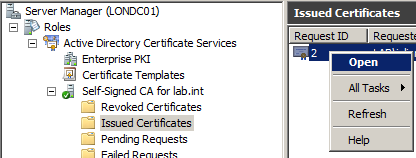
You can check the certificate has been trusted by navigating to the Issued Certificates folder, selecting the certificate, right click and Open.
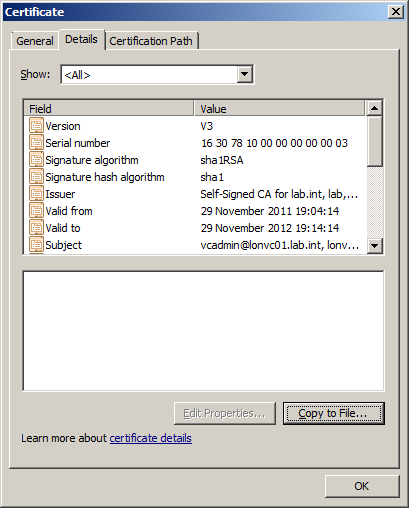
You can see the certificate is issued by Self-Signed CA for lab.int
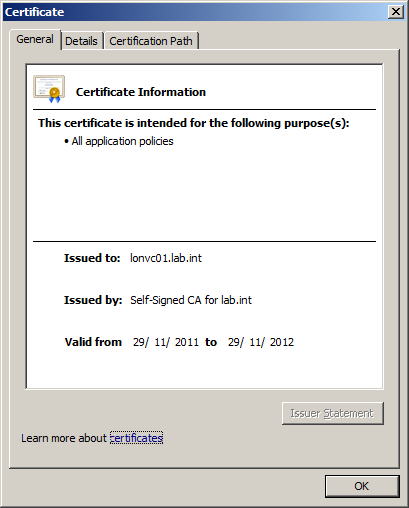
You then need to export this certificate. Select the Details Tab and click Copy to File.
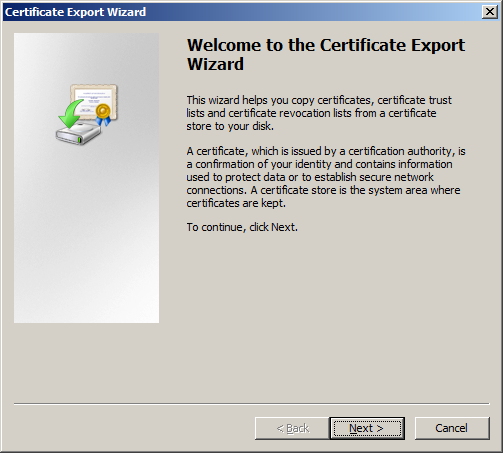
This will launch the Certificate Export Wizard.
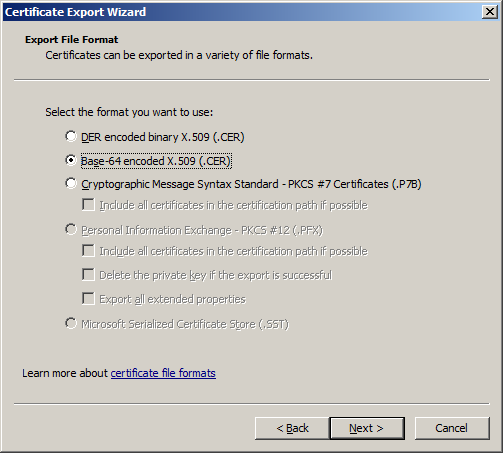
Select Base-64 encoded X.509 (.CER) and save the file as rui.cer into the same folder where you generated the original vCenter certificate.
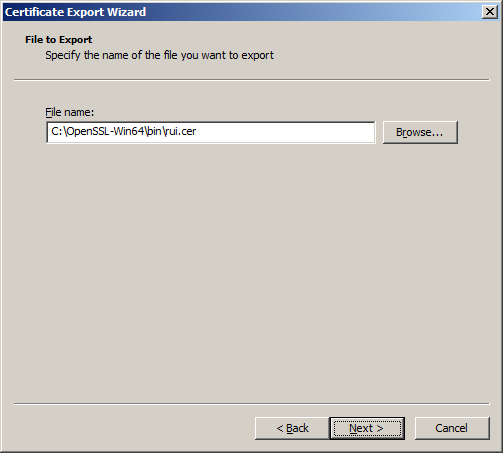
Navigate to the folder and rename rui.cer to rui.crt
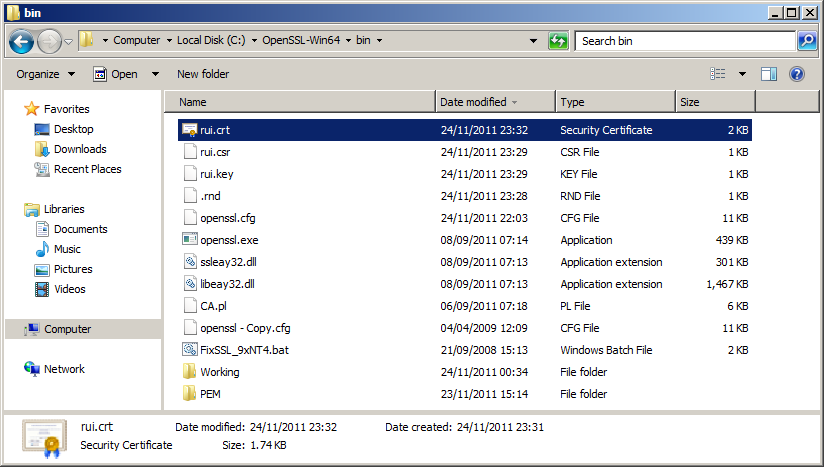
You then need to create a PFX file with the following command. You need to ensure the password is exactly testpassword otherwise the certificate won’t be recognised
openssl pkcs12 -export -in rui.crt -inkey rui.key -name rui -passout pass:testpassword -out rui.pfx
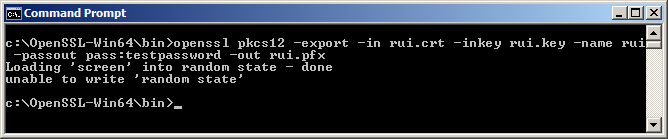
It may now be a good time to replace the openssl.cfg file with the original otherwise the same DNS alias will be applied to future certificates generated.
You have now created the certificate to use for the various vCenter components.
Part 4 will show you how to replace the default vCenter 5 server certificate.


But in this case don’t start vCenter Inventory Service
This is a great series of articles and is a great help when trying to successfully configure CA SSL certificates in vSphere 5 environments. A couple of additional steps will be needed to get all of the Web Services components working in addition to above. But this is a great starting point.
@Michael
Thanks, Michael, I am working on getting the series updated with these additional steps once I have a chance.
What are the additional steps that are missing? VMWare doesn’t have very good documentation on vSphere 5 yet…
Thanks a lot Julian. I knew that this series of article would be very helpfull. And I’m quickly going over it as I’m applying Certs for my vlab infrastructure.
Thanks for making it so clear !!!
Regards,
Erik
Julian,
Here is one more line of code you might find very usefull if you want to generate a SSL Certificate for vCenter Operations Manager 5.
I created the rui.pfx key just like you mention in part but without password. Once you get your rui.pfx using
openssl pkcs12 -export -in rui.crt -inkey rui.key -name rui -out rui.pfx
You need to transform your PKCS#12 Certificate into a PEM format to be able to upload it into the vCenter Operation Manager
openssl pkcs12 -in rui.pfx -inkey rui.key -out rui.pem -nodes
Note that I re-inject the rui.key as I found that it was not taking it from the rui.pfx.
And voila you have your Root CA signed certificate for vCOPS.
Regards,
Erik
Julian, I hope you don’t mind but I create an extension blog post on this vCOPS SSL Certificate at http://www.bussink.ch/?p=458
This is exceptionally thorough and well documented series! It’s fantastic having all the required documentation in one place.
Regards,
John Terry
Your link to the 64-bit OpenSSL executable appears to be broken as of 4/30/2012.
@Erik Bussink
Certainly don’t mind, haven’t managed to finish a vCOPS cert post so thanks for adding to the information
@pricemc1
Thanks, link updated to newer version
Just a quick note: where it says to create a variable to set the openssl.cfg, the screenshot shows the full command but the line “1 C:\OpenSSL-Win64\bin\openssl.cfg” is missing the set OPENSSL_CFG= in front of it.
Great guide, thanks!
– Mike
Great job…truly! One suggestion – can you type in the “explicit” command needed to set the environment variable? It took me an hr to figure out what was needed there. I believe the cmd is:
set OPENSSL_CONF “C:\OpenSSL-Win64\bin\openssl.cfg”
Many thanks!
Hi Jullian
I failed at the steps: “openssl pkcs12 -export -in rui.crt -inkey rui.key -name rui -passout pass:testpassword ”
the error is no rui.crt exist. How to do the renaming? I rename by use F2 and change the name to rui.crt but it seems that the file is not change actually
Bgrds
I need to get this working on a system where they have a trusted root CA already created, and any device that joins the domain automatically recieves a certificate. But vCenter is not using that cert (I looked at the details of the cert in c:\program data\vmware …).
I am not sure where to go from here.
1)I think I need to export the cert, but when I do, should I choose DER or base-64 encoded x509 cert? Also,
2)I cannot export the private key (dialog box says it is marked as not exportable) – is this the “pfx” file? If I can’t export it – can I still just install SSH and then use the existing cert (that I exported out of the cert store) and create my own pfx file?
3)really – the pfx file has to have the exact password ‘testpassword’??????
4)do the cert file names also have to be exact – or can we use whatever file names we want?
yea, so when I export the existing cert, I only get the .cer file, not the .key or .pfx
Are these required? How can I get these files, without having to request an entirely different cert from the CA (as I am not sure whether this cert is important, being used for something in particular – or – maybe it doesn’t matter? Maybe I just generate a new cert anyway, and use it for this?